
Freddy’s App: Order Ahead, Pickup and Delivery (2026)
Ordering from Freddy’s used to mean standing at the counter or talking into the drive-thru speaker. The Freddy’s app adds a third way to do it. You pick a location, build your order on your phone, pay, and collect it inside or have it brought to your door. It also holds your Rewards account, your saved payment methods, and your favorite orders.
That sounds simple, and for many people it is, but the app has rough edges too. Prices only appear once you pick a location, pickup means going inside rather than using the drive thru, and some users run into login trouble. This guide covers the app, the ordering steps, and fixes for common problems.
Table of Contents
Freddy’s app at a glance
The Freddy’s app is the official ordering app from Freddy’s LLC, free to download on iPhone and Android. It launched in its current form in June 2022, when Freddy’s added delivery and order-ahead features and rebuilt its loyalty program around the app. As of late November 2026 it had about 1.7 million installs on Google Play and a 4.7 star rating from roughly 35,000 reviews there. Android needs version 8.0 or later and the app is about 31 MB. iPhone needs iOS 15.6 or later and the app is about 49 MB. The most recent update at research time was dated October 27, 2026.
Three things sit at the center of the app: ordering ahead, finding a location, and Freddy’s Rewards. You can order for carry-out, delivery, or dine-in from the same menu you would see in the restaurant, including steakburgers, chicken sandwiches, hot dogs, sides, frozen custard, and drinks. You can change toppings, pick a side and a drink, and save an order you like so you can place it again with a few taps.
| Fact | Detail |
|---|---|
| Price | Free to download |
| iPhone | Requires iOS 15.6 or later, about 49 MB |
| Android | Requires Android 8.0 or later, about 31 MB |
| Google Play installs | About 1.7 million |
| Google Play rating | 4.7 stars, about 35,000 reviews |
| Last update at research | October 27, 2026 |
| Publisher | Freddy’s LLC |
| Rewards rate | 10 points per $1 pre-tax, when signed in |
| Points expiry | One year after earned |
| Points per day | Up to 3 orders |
How to download and set up the Freddy’s app
Start in the official store for your phone. iPhone users can get it from the App Store listing titled “Freddy’s App”, and Android users from the Google Play listing titled “Freddy’s”, both published by Freddy’s LLC. Download only from those listings. Other sites that offer the app file are not official, and there is no reason to use them when the app is free in both stores.
Once it is installed, create a Freddy’s Rewards account or sign in with the one you already have. The same account works in the app and on freddys.com, so points and rewards carry across both. Freddy’s recommends the latest version of iOS or Android for the best experience, and the sign-up reward can take up to 24 hours to show in your account. If you sign in with Apple, you do not need a separate Freddy’s password, since Sign In with Apple does not use one.
Location access matters more here than in most food apps. The app uses your location to find the nearest restaurant and to set which location fills your order.
How to order with the Freddy’s app step by step
First, open the Freddy’s app and pick your location. The app shows the nearest restaurants, and you can tap one to see its menu and hours. Prices are tied to the location you pick, so choose the restaurant you will actually collect from or have deliver to you. Reviewers note that you cannot see prices until you start an order at a location, so do not expect a price list on the home screen.
Second, browse the menu and add items to your bag. The menu is grouped the same way as the online menu: combo meals, frozen custard, sandwiches and more, savory sides, beverages, Freddy’s Bevies, sauces and dressings, and by-the-bottle items. Tapping an item opens its options, where you can pick toppings, choose a side and a drink for a combo, and adjust quantities.
Third, choose how you want to get the food: carry-out, delivery, or dine-in. The app asks this before checkout. Carry-out means you collect it inside the restaurant. Delivery asks for an address and shows whether your address is in range. Dine-in means you order ahead and eat in the restaurant.
Fourth, review your bag. Check quantities, toppings, and any reward you want to use. To use a reward in the app or online, add the item to your bag and apply the reward from the Available Rewards section on the bag screen. Only one reward can be used per transaction, and promo codes cannot be combined with rewards.
Fifth, pay. You can save a credit card in the app for faster checkout, or pay with a gift card added to your account. The order is charged when you place it, so make sure the items, the location,

| Option | How it works | Earns points |
|---|---|---|
| Pickup | Order in the Freddy’s app, collect inside at the Mobile Order Station, no check-in needed | Yes, when signed in |
| Delivery | Order in the Freddy’s app or freddys.com, delivered to your address | Yes, when signed in |
| Dine-in | Order ahead in the Freddy’s app, eat in the restaurant | Yes, when signed in |
| Drive-thru pickup | Not a confirmed Freddy’s app option, order at the speaker instead | Scan QR code at the register |
| Third-party delivery | Order Freddy’s on DoorDash or Uber Eats | Enter receipt barcode in app within 72 hours |
Delivery through the Freddy’s app
Delivery is built into the app, and it works two ways. You can order delivery directly through the app or freddys.com, or you can order Freddy’s through DoorDash or Uber Eats.
Delivery range and timing depend on the restaurant and your address. Some locations show online ordering as unavailable at certain times, with a message such as “Online ordering is unavailable at this time. Please try again later or select a different location.” If delivery is not offered to your address from the nearest restaurant, the app will say so when you enter the address. Trying a different nearby location sometimes helps.
Third-party delivery is the fallback when Freddy’s own delivery does not reach you. Freddy’s is listed on both DoorDash and Uber Eats, and Uber Eats notes that its Freddy’s prices may differ from in-store prices. Delivery fees on those services vary by location, time, and membership.
One difference matters for Rewards members. If you are signed in, all delivery orders placed through the Freddy’s app or freddys.com earn points. On a third-party delivery order, you can still earn points by entering your receipt in the app, which is covered in the rewards section below.

Pickup and drive-thru
Pickup is where the Freddy’s app is most useful, and also where expectations most often go wrong. When you order carry-out through the app, you collect the food inside the restaurant from the Mobile Order Station. Freddy’s official FAQ is clear on this point: when picking up your order you do not need to check in, simply walk in and pick up your order from the Mobile Order Station.
There is no confirmed drive-thru pickup option in the Freddy’s app. The official app description lists carry-out, delivery, and dine-in, and does not mention drive-thru pickup. App store reviewers have raised this repeatedly, saying there is no option to order for drive-thru pickup and only in-store pickup is offered. If you want to use the drive thru, order at the speaker in the usual way and pay at the window. Do not place an app order and expect to collect it from the drive-thru lane.

Payment in the Freddy’s app
The Freddy’s app accepts saved credit cards and gift cards at checkout. You can save your payment information in the app so later orders take fewer taps. Add a card from your profile under Payment Methods, and check that the card on file is still current before you place an order, since an expired card is a common reason for a checkout failure.
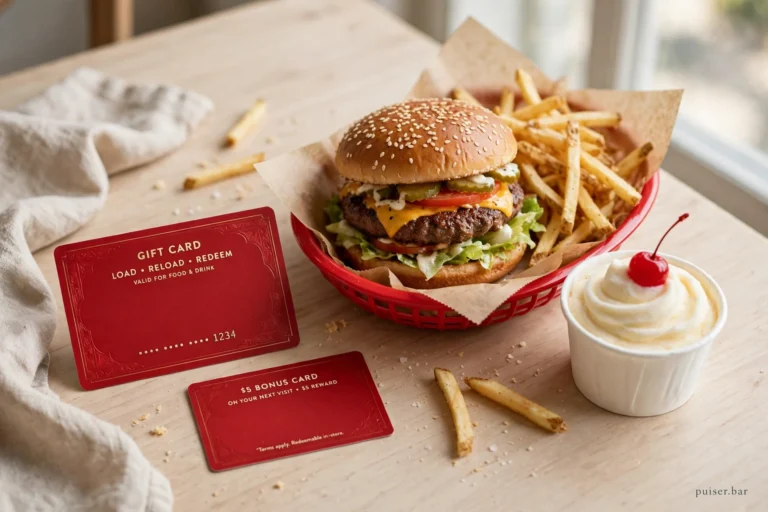
Gift cards work in the app in two places. You can add a gift card to your account during checkout by finding Add Payment Method near the bottom of the screen, tapping the gift card option, entering the gift card number and 4-digit PIN, and selecting Save Card for Later. You can also check a gift card balance from your profile by selecting Payment Methods, then Gift Card. The full guide to buying and using Freddy’s gift cards is in the Freddy’s Gift Cards guide on this site. Points cannot be earned on gift card purchases, so buying a gift card does not add to your points balance.
Scan to Pay is a separate in-store payment option inside the app. It lets loyalty members earn points, redeem a reward, and pay with a saved credit card in one scan at the register, after a credit card has been added to the app. Cash is not part of the app checkout. If you want to pay cash, order at the counter or the drive thru instead.
| Method | Where to set it up | Notes |
|---|---|---|
| Saved credit card | Profile, Payment Methods | Used for app checkout and Scan to Pay |
| Gift card | Checkout, Add Payment Method, or Profile, Payment Methods, Gift Card | Enter card number and 4-digit PIN, check balance in profile |
| Reward redemption | Bag screen, Available Rewards | One reward per transaction, cannot combine with promo codes |
| Cash | Not in the app | Order at the counter or drive thru to pay cash |
Rewards and gift cards inside the Freddy’s app
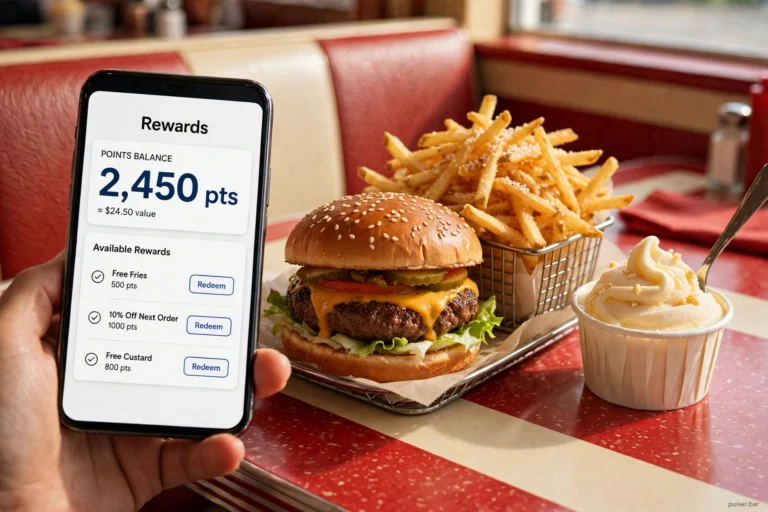
Freddy’s Rewards lives inside the Freddy’s app, and the app is the easiest place to watch your points grow. You earn 10 points for every $1 spent on your pre-tax purchase when you are signed in to the Freddy’s app or order online. Points can take up to 24 hours to appear in your account, and they expire one year after you earn them. Points can be earned on up to 3 orders each calendar day.
At the restaurant, you earn points a different way. Tap Earn in the app and have your unique QR code scanned at the register before you finish paying. If you forget to scan, you can still earn points by entering the barcode number from your receipt in the rewards dashboard of the app. You must enter the barcode within 72 hours. The full points catalogue, redemption values, birthday reward, and sign-up offer are covered in detail in the Freddy’s Rewards Program Guide on this site, so this guide does not repeat that list.
A few rules are worth knowing before you count on a reward. Only one reward can be redeemed per transaction, and promo codes cannot be combined with rewards. Most locations take part in Freddy’s Rewards, but a few nontraditional locations at airports, sports venues, and college campuses do not.

Finding locations and checking the menu in the Freddy’s app
The Freddy’s app includes a restaurant locator that finds the nearest Freddy’s and gives directions to it. Tap the location to see its address, hours, and phone number, and use the directions link to open your usual maps app. This is useful when you are traveling, since Freddy’s hours and online ordering availability vary by location. Some locations list online ordering as unavailable even during open hours, so check the location in the app before you build a large order around it.
The menu in the app covers the full range of the restaurant menu, and browsing it is a good way to decide before you arrive. The online menu at freddys.com/order shows calories beside most items, which helps if you are comparing combos. For full nutrition and allergen detail, the Freddy’s nutrition and allergen pages are the authoritative source, and this site’s Freddy’s Gluten Free Guide and Freddy’s Allergen Information explain the options and limits in plain terms. If you are deciding what to order, the Freddy’s Full Menu With Prices guide lists the menu with approximate prices by category, and the Freddy’s Meal Cost Guide breaks down what a typical meal costs.
| Question | Best source |
|---|---|
| Full menu with approximate prices | Freddy’s Full Menu With Prices guide on this site |
| What a typical meal costs | Freddy’s Meal Cost Guide on this site |
| Calories beside menu items | freddys.com/order |
| Full nutrition and allergens | Official Freddy’s nutrition and allergen pages |
| Gluten free options | Freddy’s Gluten Free Guide on this site |
| Allergen detail | Freddy’s Allergen Information guide on this site |
Troubleshooting the Freddy’s app
Login problems are the most reported issue with the Freddy’s app. Reviewers on both stores describe being signed out and then unable to sign back in, getting incorrect password messages after a reset, and seeing the login screen loop back on itself. If this happens to you, start with the basics: update the app to the latest version, check that you are using the email and password for your Freddy’s Rewards account rather than an old one, and try signing in on freddys.com with the same details. Several reviewers report that their details work on the website even when the app refuses them, which points to an app problem rather than a wrong password.
If the website sign-in works but the app still will not let you in, try the password reset from the app login screen, then sign in again after the reset. If that fails, delete and reinstall the app, since a fresh install clears stored data that can cause a loop. If the problem continues, contact Freddy’s digital support through the support form linked from the official FAQ page, and say whether the same details work on freddys.com. Do not keep resetting the password over and over, since repeated resets have not fixed the loop for other users.
A second common problem is an order that cannot be changed or cancelled. On the recent orders screen, check whether your order has a Modify Order or Cancel Order button. If neither button is there, the order is already being made in the kitchen and cannot be changed or cancelled. This is by design, and it happens fast, so check your bag carefully before you confirm payment. If the food is wrong when you collect it, tell the team member at the restaurant rather than trying to fix it in the app.
Tips for ordering with the Freddy’s app
Save the orders you like. In your recent orders, tap the heart icon on any past order to save it as a favorite, and use it to reorder quickly next time. This is the single biggest time saver in the Freddy’s app, and it also cuts down on mistakes, since the toppings and sides are already set the way you like them.
Sign in before you order, every time. Points only count when the order is tied to your signed-in account, and a guest checkout will not earn them. If you ordered at the counter and forgot to scan, enter the receipt barcode in the app within 72 hours rather than writing the points off.
Check the bag screen for rewards before you pay. Rewards sit in the Available Rewards section on the bag screen, and you have to apply one yourself. An unused reward does not apply on its own, and only one can be used per transaction, so pick the one that saves you the most on that order.
Ordering for children is covered in the Freddy’s Kids Menu guide on this site, which lists kids meals with approximate prices.
Compare the total before you choose between the app and a third-party service. Freddy’s own delivery and DoorDash or Uber Eats can show different prices and fees for the same items, and Uber Eats itself notes that its Freddy’s prices may differ from in-store prices. The cheapest route changes by location and day, so the checkout total is the only reliable comparison.
Keep the app updated.
Puiser.bar is an independent, unofficial informational website and is not affiliated with, endorsed by, or officially connected to Freddy’s Frozen Custard & Steakburgers. Menu items, prices, nutritional information, and availability may vary by location. Please verify current details through the official Freddy’s website, app, or local restaurant.
Conclusion
The Freddy’s app is worth installing if you order from Freddy’s more than once in a while. It holds your Rewards account, your saved payment methods, and your favorite orders, and it lets you order ahead for pickup, delivery, or dine-in without standing in line. Its limits are real too: pickup means going inside, there is no drive-thru pickup option, prices only show after you pick a location, and some users hit login trouble. Knowing those limits before you order is what makes the app useful instead of frustrating. Pick your location, check your bag, apply a reward if you have one, and collect your order from the Mobile Order Station. The rest is just dinner.
Is the Freddy’s app free?
Yes. The Freddy’s app is free to download on iPhone and Android, with no ads. You pay only for the food you order, plus any delivery fee or tax that applies to your order.
How do I order Freddy’s online for pickup?
Open the Freddy’s app or go to freddys.com/order, pick your location, add items to your bag, choose carry-out, pay, and collect your order inside the restaurant from the Mobile Order Station. You do not need to check in when you arrive.
Can I get Freddy’s delivered through the Freddy’s app?
Yes. The Freddy’s app offers delivery to addresses in range of a participating restaurant. You can also order Freddy’s delivery through DoorDash or Uber Eats, though their prices and fees may differ from the app.
Does the Freddy’s app work for drive-thru pickup?
No confirmed drive-thru pickup option exists in the Freddy’s app. The app offers carry-out, delivery, and dine-in, and carry-out means collecting your order inside at the Mobile Order Station. To use the drive thru, order at the speaker in the usual way.
How do I earn Freddy’s Rewards points in the Freddy’s app?
Sign in, then place your order through the Freddy’s app or freddys.com. You earn 10 points for every $1 spent before tax. At the counter, tap Earn in the app and have your QR code scanned before you pay. Points can take up to 24 hours to appear.
Can I use a Freddy’s gift card in the Freddy’s app?
Yes. Add the gift card during checkout under Add Payment Method, or from your profile under Payment Methods, then Gift Card. Enter the gift card number and 4-digit PIN and select Save Card for Later. You can check the balance in the same place.
Can I change or cancel an order in the Freddy’s app?
Sometimes. Check your recent orders for a Modify Order or Cancel Order button. If neither button is there, the order is already being made in the kitchen and cannot be changed or cancelled.
Why is the Freddy’s app not letting me log in?
This is a widely reported problem. First update the app, then check that the same email and password work on freddys.com. If the website works but the app does not, try a password reset, then delete and reinstall the app. If it still fails, contact Freddy’s digital support through the form on the official FAQ page.
Do I earn points on DoorDash or Uber Eats orders?
Not automatically. Delivery orders placed through the Freddy’s app or freddys.com earn points when you are signed in. For a third-party delivery order, enter your receipt barcode in the Freddy’s app within 72 hours to earn points.
Does the Freddy’s app show prices and calories?
Prices appear once you pick a location, since they vary by restaurant. The online menu at freddys.com/order shows calories beside most items. For full nutrition and allergen information, use the official Freddy’s nutrition and allergen pages.